
Keycloak is an open-source identity and access management solution designed to manage users and secure applications. It provides features such as single sign-on (SSO), social login integration, and user federation.
It also offers a user-friendly administration console for managing users, roles, and permissions, as well as customizable user interfaces for login, registration, and account management
Why use a local auth server?
Being able to run a local auth server means we won’t find ourselves blocked while waiting for a client to configure their own auth server. Often picking up a piece of work involving client-owned authentication results in some delays while requests are sent around, and more often than not leaves us unable to write our application code until the auth server has been configured.
It also allows us to have full control over our own local dev environment, including the ability to create any number of users with specific roles. This means we can easily run multi-user scenarios locally for testing, demoes or debugging, and prevents needing to comment out or tweak application code just to replicate a bug.
Getting started
To start the Keycloak dev server, simply run the following command in your terminal. This will expose Keycloak on port 8080, and creates an initial admin user with the credentials admin:admin.
docker run -p 8080:8080 -e KEYCLOAK_ADMIN=admin -e KEYCLOAK_ADMIN_PASSWORD=admin quay.io/keycloak/keycloak:25.0.2 start-dev
Opening http://localhost:8080/ in your browser should show you the login page for the Keycloak admin interface. Sign in with the previously created admin credentials admin:admin. Once logged in, you should be greeted with the Keycloak admin console.
Configuring Keycloak
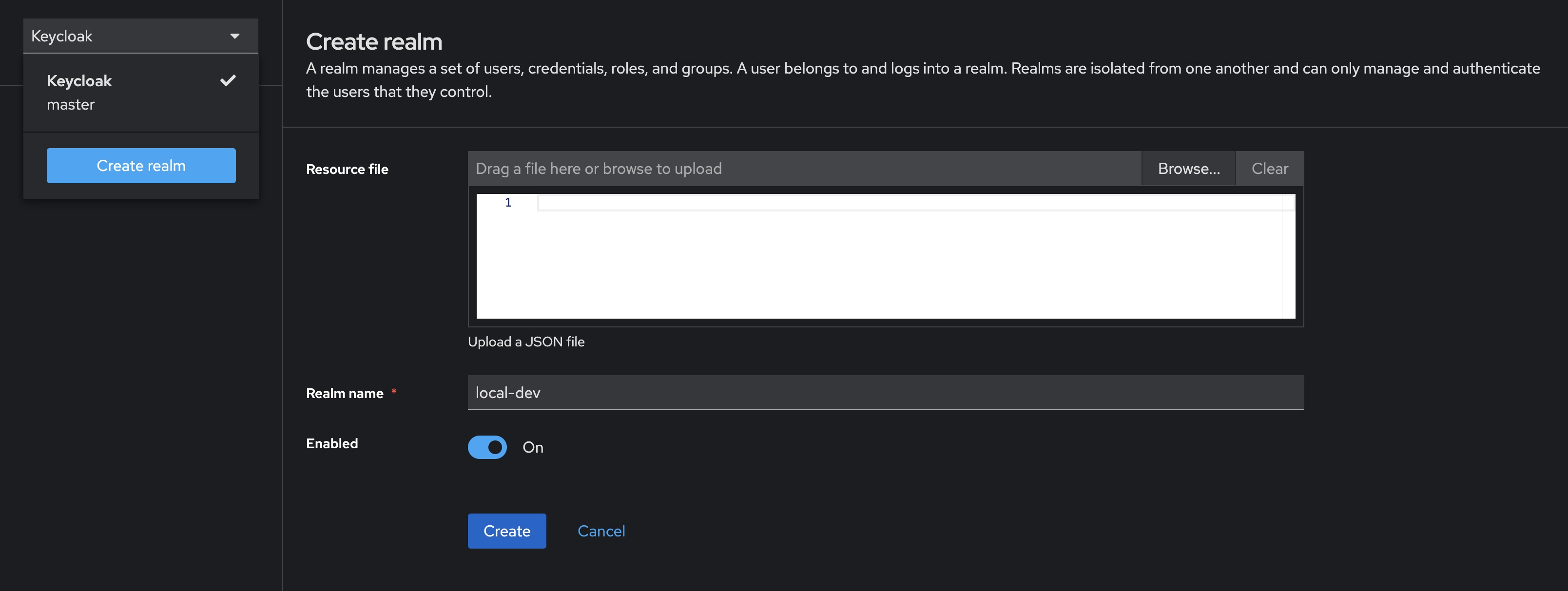
Creating a realm
- Open the admin console and login using our admin credentials
admin:admin - Open the dropdown that currently says Keycloak and select Create realm
- Enter the desired name for the realm, in this case using
local-dev - Finish creating the realm by clicking the “Create” button
Adding a user
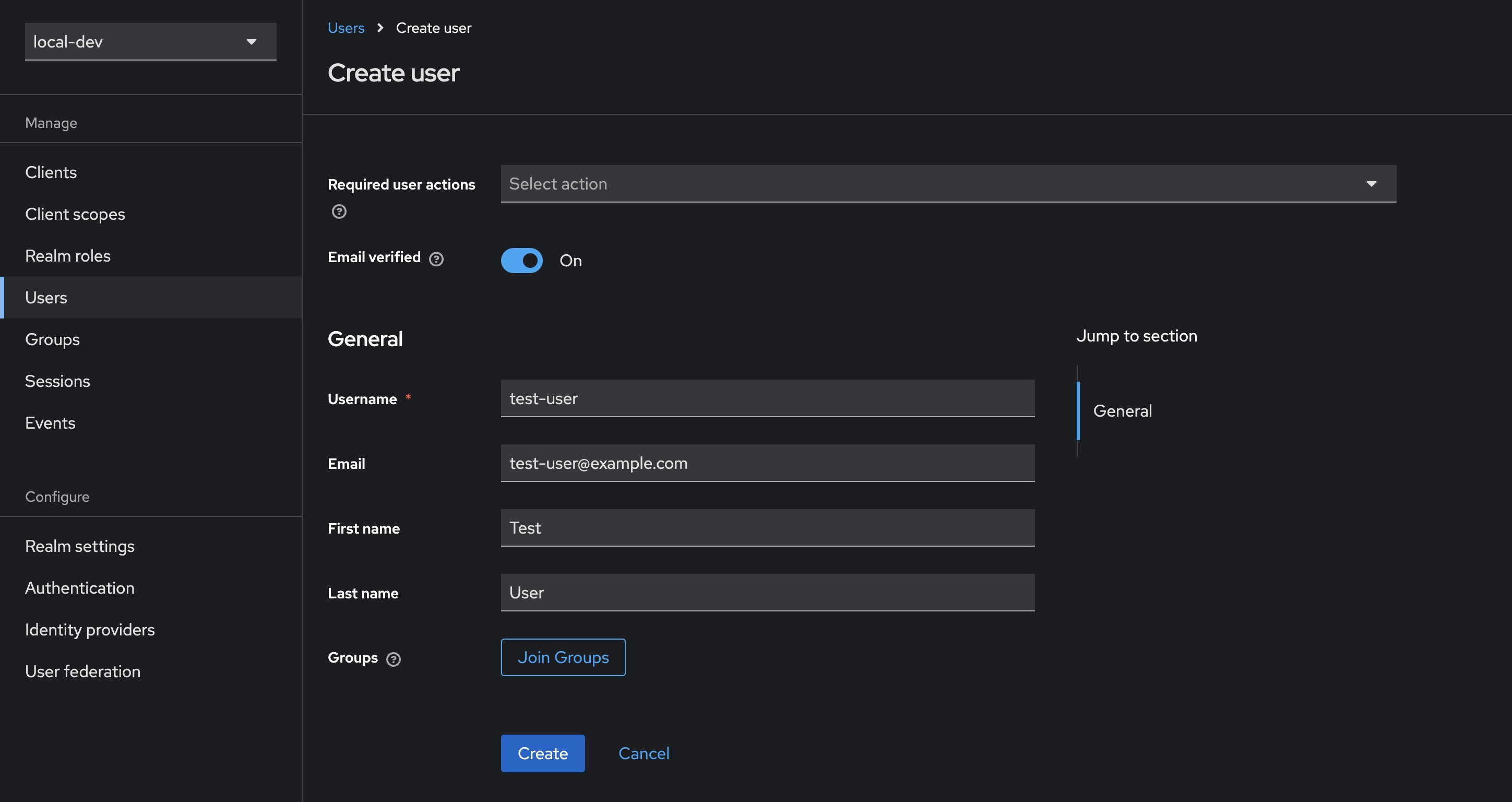
- Select Users from the sidebar, then click Create new user
- Fill in the details for a new user, in this case using
test-useras the username - (Optional) ticking Email verified means our test user can skip this step
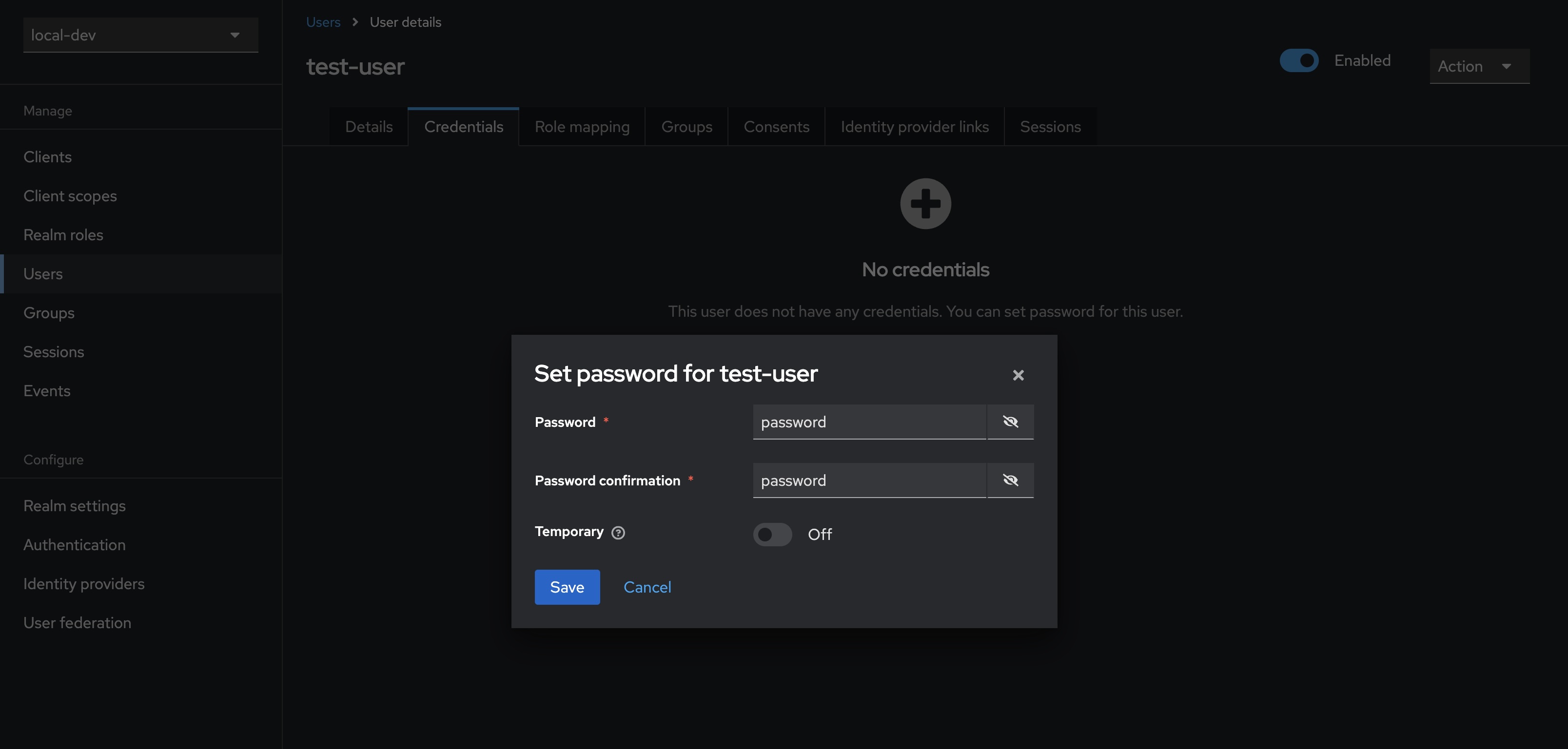
- Select Credentials from the tab bar, then click Set password
- Enter and confirm the user’s password, in this case using
password - (Optional) uncheck Temporary to prevent needing to update the password at first login for this user
You can test the newly created user’s account at http://localhost:8080/realms/myrealm/account. Opening the link and signing in with our user’s credentials test-user:password gives us access to a user-facing interface that allows updating of details, passwords, and the setting up of two-factor authentication.
Registering a client
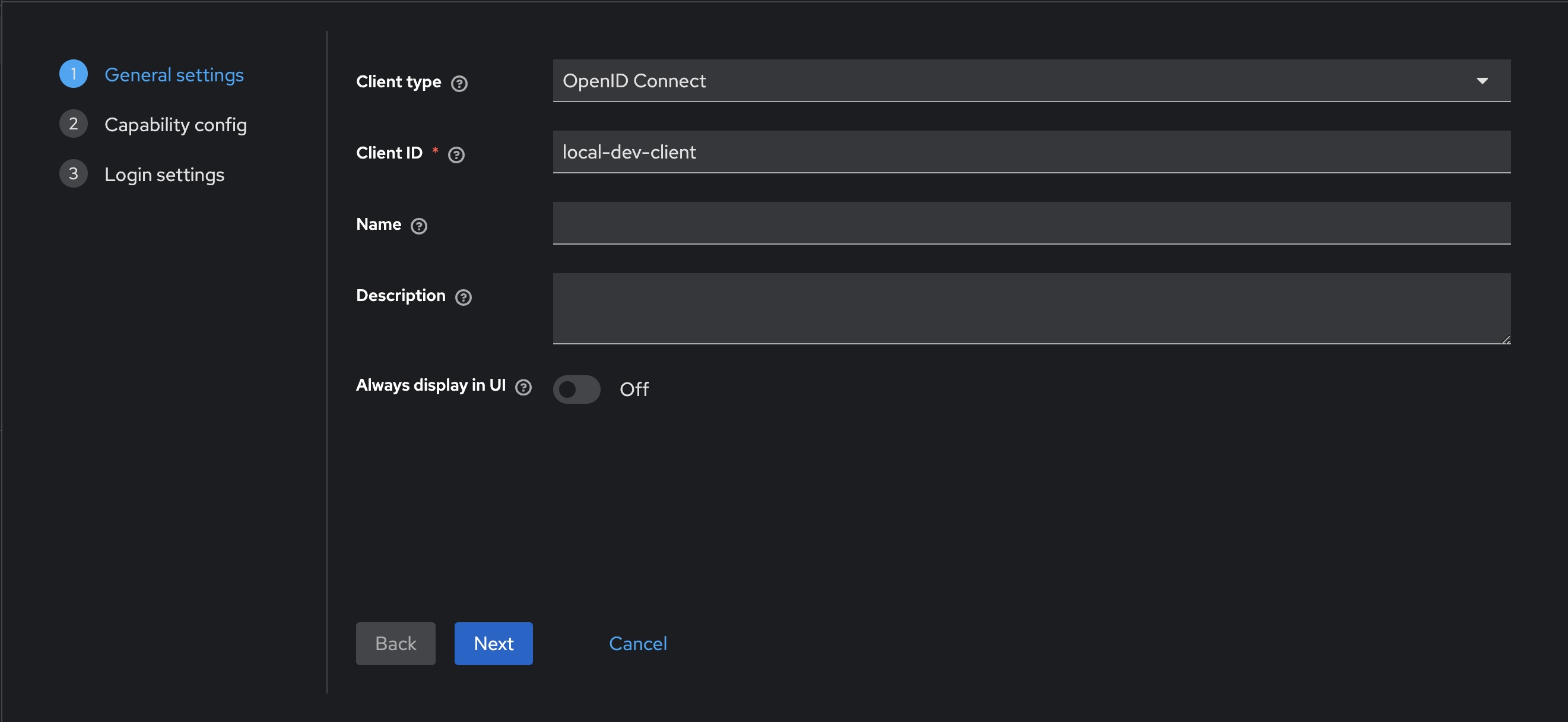
- Select Clients in the sidebar, then click Create client
- Make sure to leave
OpenID Connectselected as the Client type - Enter the desired client name, in this case using
local-dev-client - Click Next
- Ensure that Standard flow remains checked
- Click Next
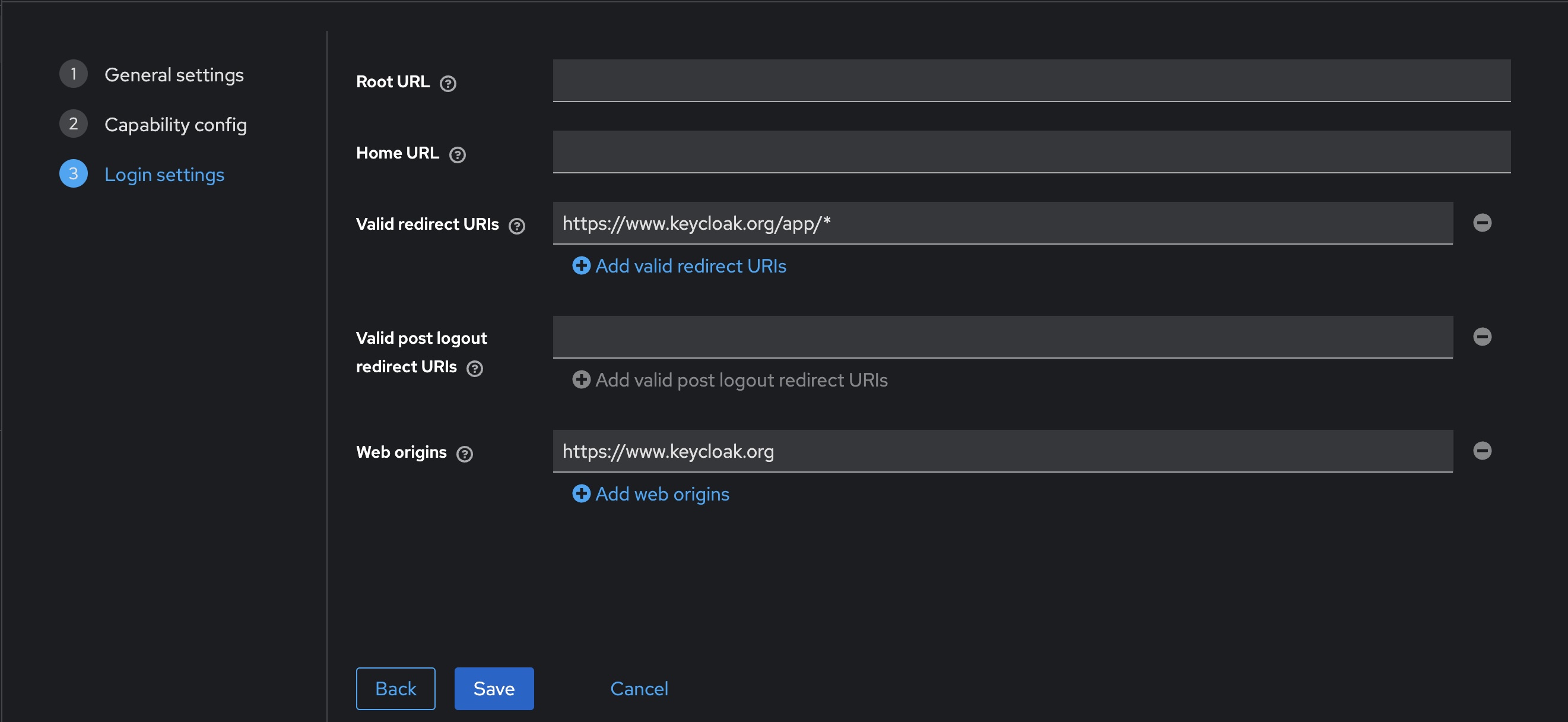
- To facilitate testing, make the following changes to the Login settings
- Set Valid redirect URIs to
https://www.keycloak.org/app/* - Set Web origins to
https://www.keycloak.org
- Set Valid redirect URIs to
- Click Save
You can test the newly created client by using https://www.keycloak.org/app/. Enter the details from our previously created realm and client, and press Save. Once saved, you can sign in with the test user created earlier.
Audience claim
You may also need to set the audience claim correctly, which might become apparent when wiring this up to an application.
- Select Clients in the sidebar, select our newly created client
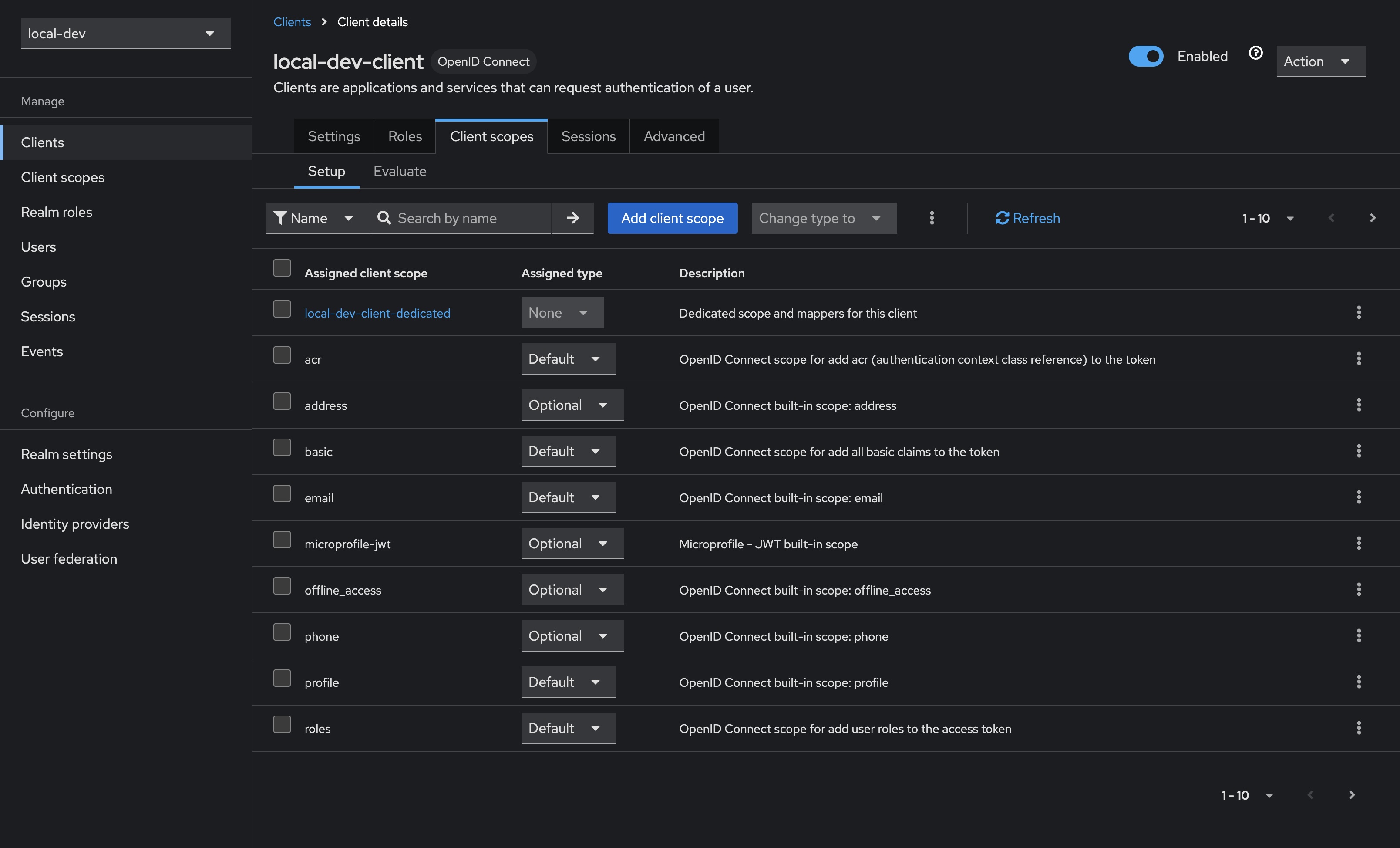
local-dev-client, then select Client scopes from the tabs along the top - Select the Assigned client scope named
<client-id>-dedicated, in our caselocal-dev-client-dedicated - Click the Add mapper button, and select By configuration
- Select Audience from the list of options, and then configure as per below
- Name can be whatever you choose, I’ve gone with
audiencehere - Selecting Included Client Audience will open a dropdown; select the newly created client
local-dev-client
- Name can be whatever you choose, I’ve gone with
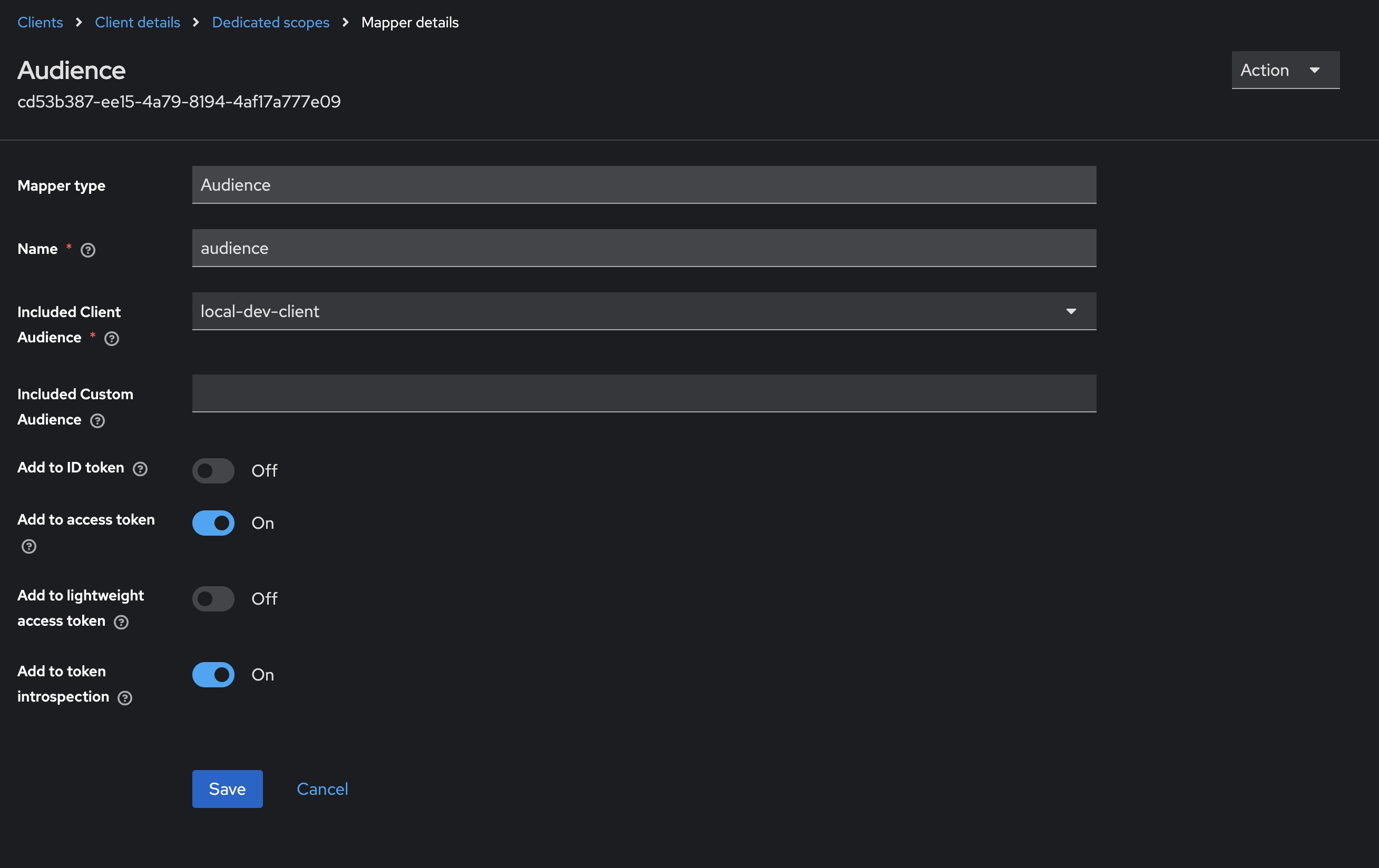
This should finish configuring our client to correctly populate the audience claim in any generated tokens.
Persisting Keycloak configuration
Of course, once we tear down our Docker container we lose any of the previously configured values. Docker volumes provide a nice solution here, which we can easily configure using docker-compose.
Save the following as docker-compose.yml and run by calling docker-compose up -d in your terminal.
| |
Importing and exporting configuration
Keycloak allows us to import and export realms, which can make it much easier to share configurations amongst team members.
Exporting an existing realm
The following instructions to export a realm from Keycloak will assume the use of a docker compose file similar to this.
| |
The easiest way to export a realm when using docker compose is to add a second compose file. Call this docker-compose.export.yml.
| |
Run the following in your terminal to export the configured realm.
docker-compose -f "docker-compose.yml" -f "docker-compose.export.yml" up --exit-code-from keycloak
You should now have a directory called output that contains a file called local-dev-realm.json. This file can be imported manually when creating a new realm, or Keycloak can be configured to automatically import this realm when the service starts (attempting to import an already-existing realm will fail to prevent overwrites).
An important caveat to note is that Keycloak is designed to export from a stopped server, meaning you will need to ensure that your configuration has been persisted through some means.
Keycloak also allows for multiple options when it comes to if and how users should be exported. The example above uses the simpler approach of combining them into the realm file. See the Keycloak documentation for more details.
Importing a realm from a file
The updated Docker compose file below uses a bind mount to an import directory. Once any realm.json files have been exported, placing the files in the import directory will allow Keycloak to automatically pick those realms up and import them on first run.
Update your docker-compose.yml to the following and run by calling docker-compose up -d in your terminal.
| |
Note the removal of the persisted Docker volume — this effectively gives us an auth server that can be modified on the fly, but will reset back to the exported realm whenever it restarts.
As Keycloak won’t overwrite an existing realm with the import method, the Docker volume can always be reintroduced and will essentially mean our import file serves as a starting point upon which changes can be persisted.
Using Keycloak with a React SPA + MSAL
One of my main motivations for looking into Keycloak was to decouple local development from a third party authentication server which needed to be configured by the client. More often than not, this is done using Microsoft Entra ID, and in a typical React application we would use MSAL to set up client authentication.
This serves as a short guide to resolving some of the issues encountered when trying to use MSAL with a locally-configured Keycloak server.
See the example repo here.
Running Keycloak with HTTPS
Keycloak will be exposed at http://localhost:8080 which is all well and good for most cases, however I was wanting to drop this in as a local auth replacement for MSAL in a typical React project.
Since @azure/msal-browser doesn’t allow us to use a HTTP authority, the default Keycloak endpoint won’t work. The following steps allow for running Keycloak with HTTPS.
Creating a self-signed certificate using dotnet dev-certs
Since dotnet-certs are typically used for local dev when building .NET applications, it seemed easiest to simply repurpose the same tooling to create other local dev certs.
Create the self-signed certificate by running the following in your terminal, in this case using password as the credential to create the following two files: certificate.crt and certificate.key.
dotnet dev-certs https -ep ./certificate.crt -p password --trust --format PEM
Use openssl to decrypt the certificate key, overwriting certificate.key with the decrypted copy.
openssl rsa -in certificate.key -out certificate.key
As a matter of preference, I tend to rename these files to cert.pem and key.pem. The remainder of this guide assumes this naming.
Running Keycloak with the certificate
The following changes expect that the certificate files we just created are present in a certificates directory. Go ahead and create the folder and copy both the certificate and key into it.
Create or update your docker-compose.yml file to the following and run by calling docker-compose up -d in your terminal.
| |
You can now access the Keycloak server at either http://localhost:8080 or https://localhost:8443. Using the HTTPS endpoint should allow us to use Keycloak with @azure/msal-browser.
Configuring MSAL to work with Keycloak
Without delving too deep into how we might hold MSAL in a typical React application, the biggest change we need to make is to manually provide some of the configuration that usually works out of the box with MSAL when using Microsoft Entra ID.
| |
There are of course a few more data points required, which may then need to be manually provided again when configuring this to work with both Keycloak locally and Microsoft Entra ID when deployed. A small amount of pain to endure for the benefits of decoupling ourselves from a customer-provided auth server.
Of course, in practice we would make these string more easily configurable, but I’ve opted to hardcode them to better demonstrate.
See the sample repo to see these changes in more context.
OpenID Endpoint Configuration
The trickier part here might be knowing where to obtain these strings from. Navigating to the realm settings of our Keycloak server’s admin interface, find the OpenID Endpoint Configuration link.
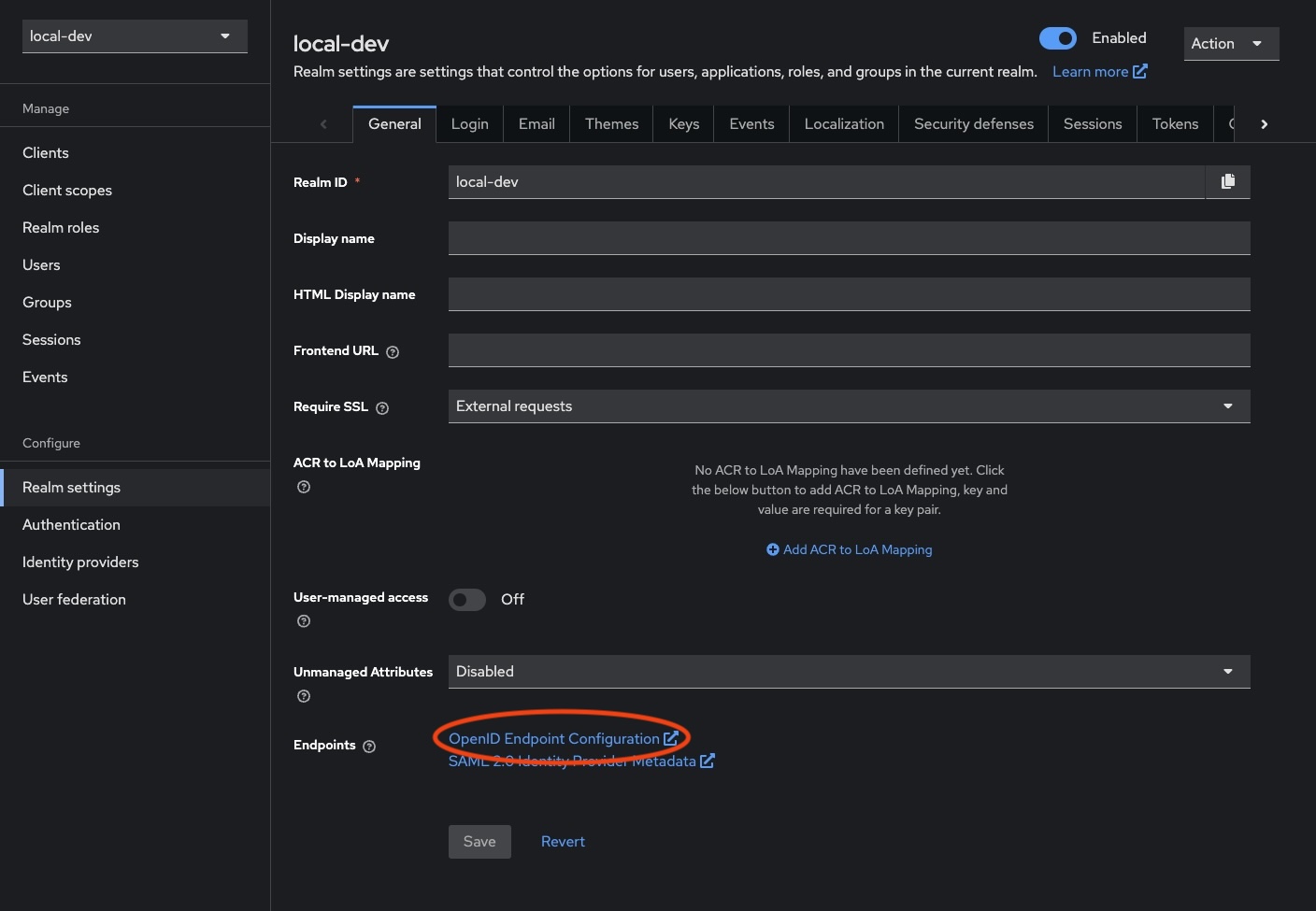
Opening this will yield a new page with all of our endpoints that we need to populate this config.
| |
Running React with HTTPS
We may also need to run our React application with HTTPS as well. To achieve this, we need to update vite.config.ts to contain the following. Fortunately, we can repurpose the same certificates we created for Keycloak.
Note that while omitted below, it may be useful to split the serve and build commands so we keep our changes away from any deployed code.
| |
And then we’ll also need to add a .env (and .env.local) with the correct paths.
| |
Now running the React application with pnpm dev should serve it using HTTPS.
Missing parameter: id_token_hint
I did run into a small issue with the setup, where a user was unable to logout completely. Attempting to logout was yielding an error due to the absence of either a client_id or id_token_hint when requesting the post_logout_redirect_uri.
Ultimately, this was easily resolved by obtaining an access token before attempting to logout, and using the id_token from that.
| |
Optional: Adding a secured .NET backend
The sample repo contains code that also connects the React application to a .NET API with a secured endpoint.
The configuration here is relatively straightforward to work with our local Keycloak server.
The main changes we’ll need to make are to Program.cs, where we simply add our necessary configuration (truncated for brevity).
| |
And providing the appropriate configuration via appsettings.
| |
Running the code in the sample repo will result in the React application displaying a button which calls the /weatherforecast endpoint to illustrate the correct responses are returned depending on whether the client has been authenticated or not.